Open WordPress
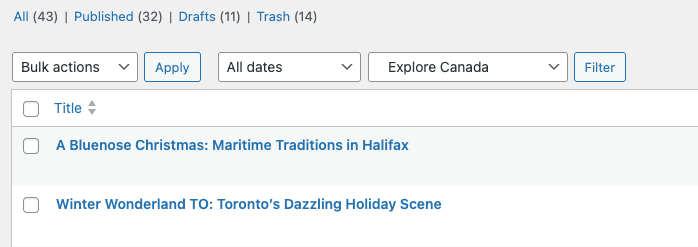
Stories
Filter the drop-down by Explore Canada, then click Filter.
Working on Draft Stories
Instructions:
Look for stories in Draft status.
Press COMMAND + Click on a story title to open it in a new tab.
Go through each paragraph in the story and open any reference link provided.
For every paragraph, search for an appropriate image.
Only use free images or images from Wikimedia Commons.
How to Source Images
1. Instant Images
Go to: Media → Instant Images.
Search for an image related to the topic.
Click the cog icon.
Enter file, alt text and click on “Add Photo Attribution”.
Click on update or save.
Click on the image to download it to WordPress media library.
Repeat until you have all required images.
2. Wikimedia Commons
https://commons.wikimedia.org/wiki/Category:Images
Search for images.
Right-click the image and save it to your desktop.
Name the file based on the topic, e.g. winnipeg-topic.
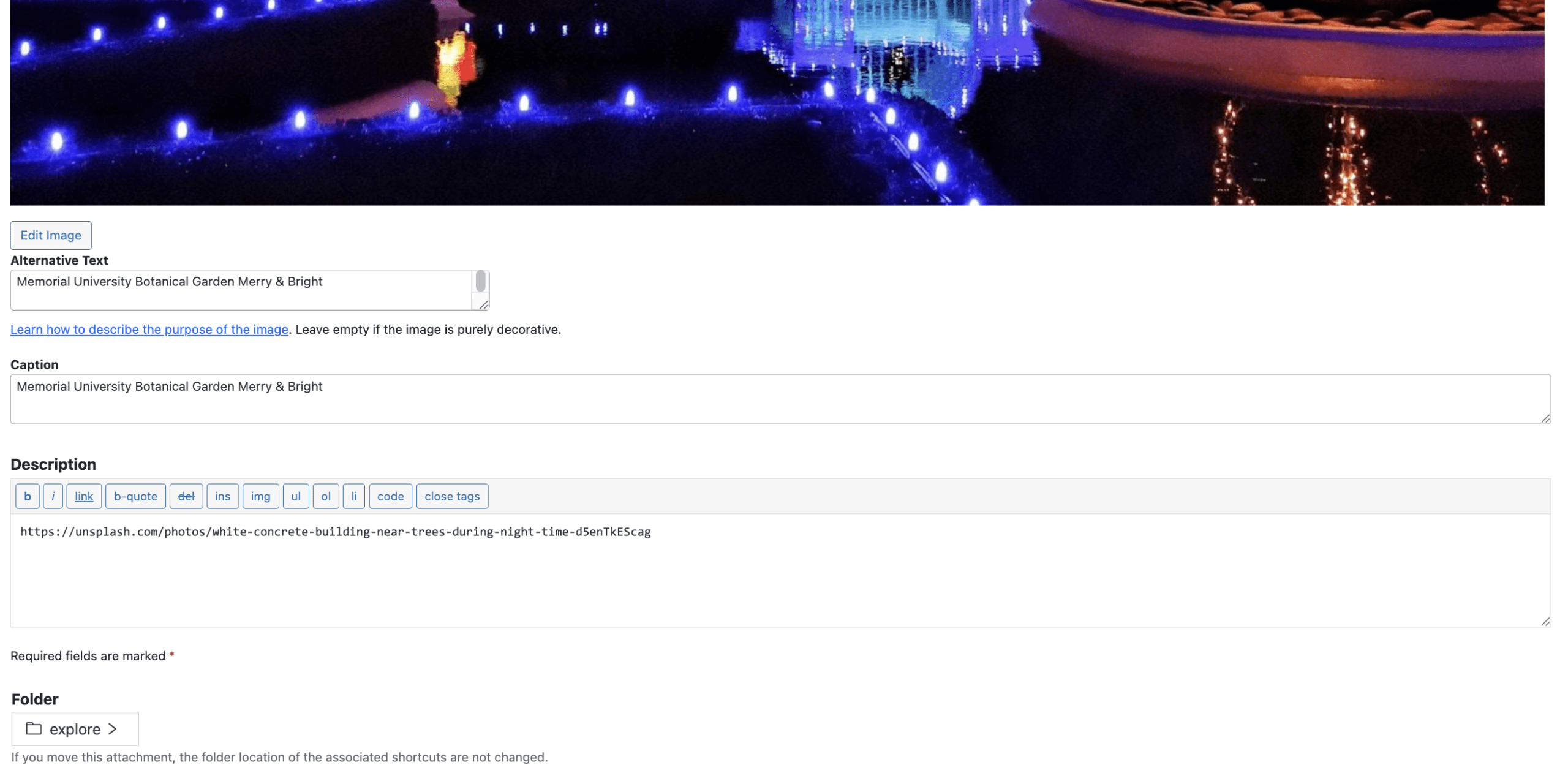
Copy the image address from the Wikimedia page and paste it into the Description field in WordPress.
Once You Have All Images
For downloaded images only:
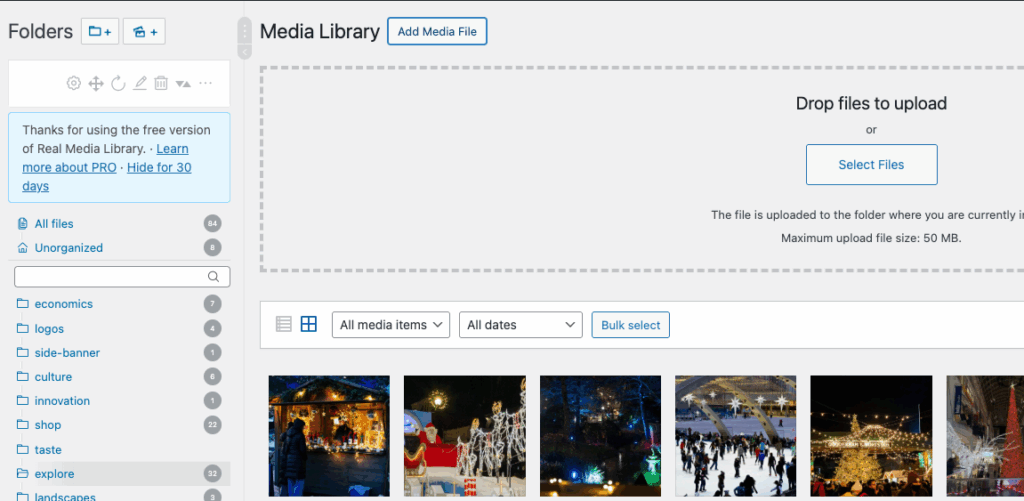
Open the Media Manager (new tab): Media Library
Click on the correct topic category (e.g. explore).
Click Add New.
Click Select Files and upload all images from your desktop.
Add Images to the Story
Go back to the story tab.
Place your cursor at the bottom of the page.
Click the blue + button.
Select Media → Image.
Add all the images for that story at the bottom.
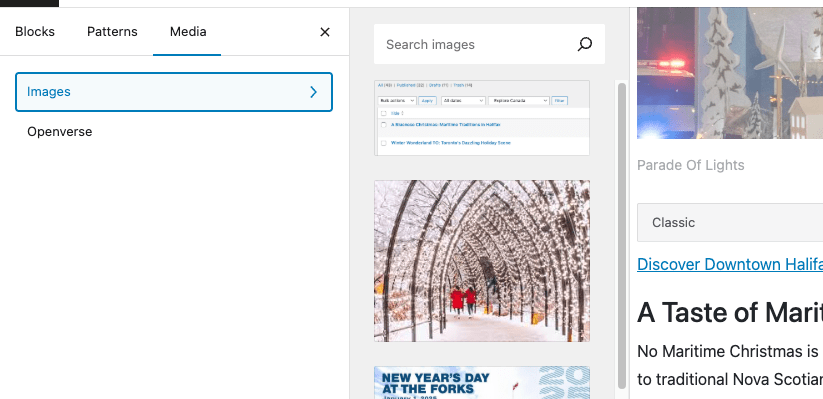
Insert new images above the existing old image. Do not delete the old one.
Retitle the Story:
Add

(one star) if you found all required images.
Add


(three stars) if you could not find all images.


Save Your Work
Click the Save to Draft button.
Close the tab to return to the list of stories.